Blog · Trade Copierr
Telegram to MT5 Copier Setup: From Signal Channel to Demo Order
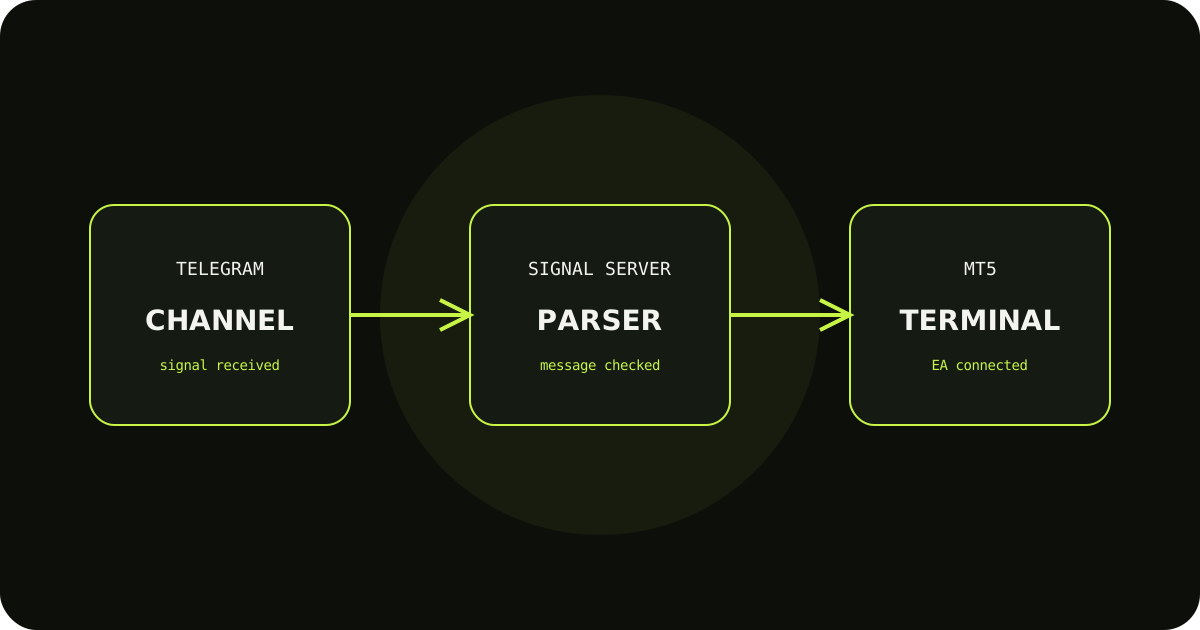
A Telegram copier has three separate jobs: read a permitted channel, understand the message, and pass the intended instruction to an MT5 terminal. Treat those as three checkpoints instead of assuming that a connected Telegram account means the whole route is ready.
Connect the channel deliberately
Use your own API credentials and only channels you are allowed to access. Confirm the channel identifier and check that a test message appears in the copier logs.
Prepare the MT5 terminal
Install the Telegram client EA in the correct MQL5/Experts folder, attach it to a chart, and enter the rental key and server details exactly as provided. Enable the terminal permissions the EA needs.
Use a demo message first
Send or wait for a clearly formatted test signal. Compare the parsed symbol, direction, volume, SL, and TP before considering a live account. Keep the first test small and easy to audit.
A sensible way to test it
- Write down the expected result before sending the demo trade.
- Check the terminal history and the copier logs, not only the chart.
- Change one setting at a time so you know which adjustment fixed the issue.
TradeCopierr is designed to make the copying route easier to inspect, but the final setup still depends on your broker, account type, symbols, permissions, and chosen settings. Use a demo account while you are learning the behavior, then decide whether the setup is appropriate for your own risk plan.
Read next: Telegram Copier page
Public comments are saved for this blog post and shown to other readers.