Blog · Trade Copierr
MT5 Trade Copier VPS Setup: Keeping the Master and Follower Terminals Online
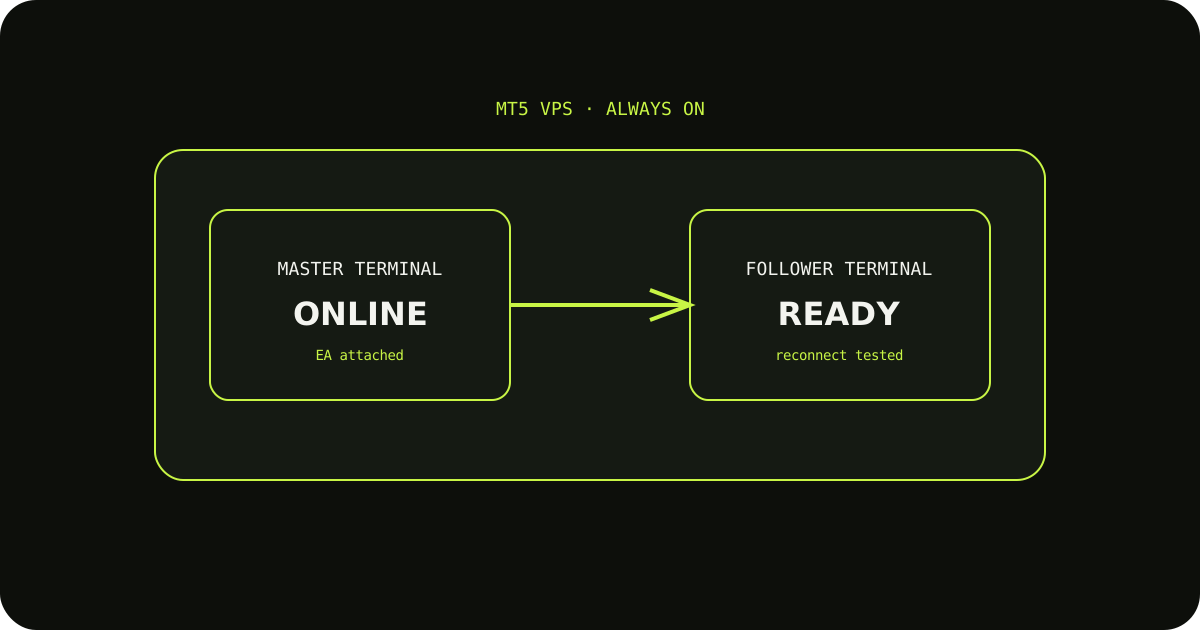
A VPS does not improve a copier by itself. It gives the terminals a stable place to run, provided the Windows session, MT5 settings, EAs, and restart behavior are all prepared properly.
Install the terminals as a pair
Keep the master and follower terminals easy to identify. Log in to the right accounts, open the intended charts, and save the template or profile after attaching the relevant EA.
Check permissions before the test
Enable AutoTrading and any WebRequest or DLL permissions required by the product instructions. Confirm the EA smiley or status indicator is active and read the Experts and Journal tabs.
Test a restart
Close and reopen the terminal or reboot the VPS during a demo session. Check that both terminals reconnect and that the copier reports a clear state instead of silently waiting.
A sensible way to test it
- Write down the expected result before sending the demo trade.
- Check the terminal history and the copier logs, not only the chart.
- Change one setting at a time so you know which adjustment fixed the issue.
TradeCopierr is designed to make the copying route easier to inspect, but the final setup still depends on your broker, account type, symbols, permissions, and chosen settings. Use a demo account while you are learning the behavior, then decide whether the setup is appropriate for your own risk plan.
Read next: VPS setup guide
Public comments are saved for this blog post and shown to other readers.