Blog · Trade Copierr
Copy Trades on MT5: Desktop, VPS & Mobile
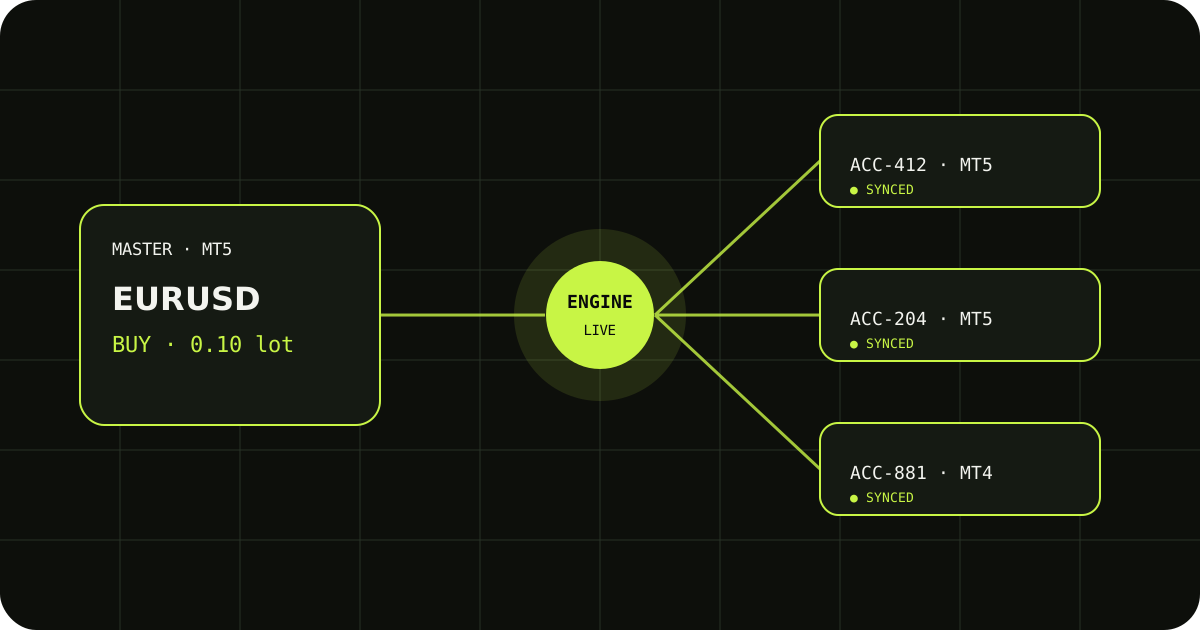
MT5 mobile is useful for checking positions, but it is not a replacement for a desktop terminal running a copier EA. The usual setup is a Master EA on the source desktop or VPS terminal and a Follower EA on each destination terminal. Your phone can monitor the accounts while the terminals stay online.
What MT5 mobile can and cannot do
The Android and iOS MT5 apps let you view charts, manage orders, and monitor account activity. They do not run MQL5 Expert Advisors, so a mobile app alone cannot act as the always-on master or follower terminal for an EA-based copier.
Use a desktop terminal or VPS for copying
Install the matching Master and Follower EAs in the MT5 desktop terminals. Keep those terminals logged in on an always-on computer or Windows VPS with AutoTrading enabled. Open the mobile app when you want to monitor the result or manage an account manually.
Test the mobile monitoring workflow
Start with a demo entry, modification, and close. Confirm the follower terminal received the trade, then use the mobile app to verify that the copied position appears with the expected direction, volume, stop loss, and take profit.
Demo checklist (five minutes)
- One market entry on the master.
- Move SL or TP once.
- Close the position and confirm follower flat.
Trade Copierr provides hosted copier infrastructure and licensed EAs; results still depend on broker rules, symbol mapping, margin, and your lot settings. Use demo until the behavior matches your plan.
Read next: MT5 copier setup · VPS setup guide
Public comments are saved for this blog post and shown to other readers.